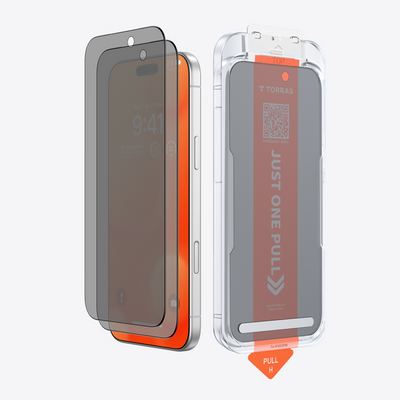
Yes, a screen protector can interfere with iPhone Face ID, but only under a specific condition: when it covers the TrueDepth camera at the top of the display. Simply having a protector on the phone does not mean Face ID will stop working. If problems start right after you install a new one, check the model match, the alignment, and the camera area before you assume the phone itself is faulty.
The rest of this guide explains why the camera area matters, how to check your protector step by step, and what to do if Face ID still fails after the protector is cleared.
Can a Screen Protector Interfere With Face ID?
It can, and Apple directly instructs users to remove anything that might be covering the TrueDepth camera, including smudges, cases, or screen protectors. The core issue is not simply having a protector on the phone, but whether any part of it sits over that camera.
The reason is simple once you know what the camera does. Apple explains that the TrueDepth camera projects invisible dots to build a depth map of your face and also captures an infrared image. Face ID compares that data with the face you enrolled. Apple also notes that Face ID requires the TrueDepth camera to see your face or your eyes. Anything that blocks the camera's view can get in the way of that.
In everyday terms, that leaves a few ways a protector can end up in the wrong spot:
- Wrong model. A protector cut for a different iPhone may not line up with your phone's camera area. iPhone models don't all share the same front layout, so a near match isn't good enough.
- Off-center placement. Even the right protector can sit a little too high or shifted to one side if it was laid down crooked.
- Installation leftovers. Dust, a trapped bubble, or residue near the camera area can sit right where the camera needs a clear view.
- Design and coverage. How a protector is cut around the top of the screen affects whether it leaves the camera area clear.
What the evidence does not show is that every protector, or any particular material, blocks Face ID. Even with a matched model and careful installation, you still need to inspect the cutouts and ensure nothing covers the camera area, rather than assuming it is clear.
Check the Protector in This Order
Start with the easiest check and only remove the protector if it looks like it might be covering the camera. Timing alone isn't proof. Face ID trouble that shows up the same day as a new protector is a good reason to check the protector first, but it doesn't confirm the cause.

- Confirm the model match. Compare your exact iPhone model (Settings > General > About shows the model name) with the model printed on the protector's box or instructions. "iPhone 17" and "iPhone 17 Pro" are different phones, and a protector for one isn't meant for the other. If they don't match, that's your most likely suspect.
- Find the camera area for your model. Look up where the TrueDepth camera sits on your specific iPhone instead of guessing. Locations differ by model. For example, Apple says that on iPhone 18 Pro models the TrueDepth camera is toward the top-left of the device. Don't assume that applies to other iPhones.
- Check alignment under good light. Tilt the phone under a lamp or near a window and look along the top edge. Is the protector shifted toward that camera area? Does an edge, a printed border, or a lifted corner cross it? A protector that drifted a millimeter or two during install can be hard to spot head-on.
- Look for residue, dust, or bubbles near the camera. A trapped speck or bubble near the top edge is easy to miss. If you find bubbles elsewhere on the screen, our guide on getting air bubbles out covers safe ways to fix them. A bubble right over the camera area is usually a sign the protector should come off and be reapplied or replaced.
- Remove a suspected obstruction and test again. If the protector might be covering the camera, peel it off following its maker's instructions, wipe the top of the screen clean, and try Face ID a few times. If Face ID works right away without the protector, the protector's fit or placement was likely the issue.
- Reinstall carefully, or use the right protector. If the protector was the problem, line it up again using an alignment frame or tray if one came in the box. Our screen protector installation guide walks through cleaning, aligning, and pressing it down. If it was the wrong model, swap it for one made for your exact phone. You can browse our iPhone screen protector collection by model.
A small, daily-life note: a protector that slipped slightly in a tight jeans pocket or got pushed by a case edge during a commute can creep out of position over time. If Face ID worked fine for weeks and then got flaky, it's still worth repeating steps 3 and 4.
If Face ID Still Doesn't Work
If the camera area is clear and Face ID still fails, the protector probably isn't the cause. Move on to Apple's own next steps.
- Check your Face ID settings. Apple advises going to Settings > Face ID & Passcode to confirm Face ID is set up and that the features you want to use it for, such as iPhone Unlock, are turned on.
- Reset and set up Face ID again. If you still need help, Apple says to go to Settings > Face ID & Passcode, tap Reset Face ID, then tap Set up Face ID to enroll your face again.
- Consider service only under Apple's stated conditions. Apple says you might need service if Face ID keeps asking you to position your face within the frame without finishing setup, or if your camera isn't working and you can't set up Face ID.
Keep the order in mind. A problem that started after a new protector doesn't, by itself, mean the phone has a hardware fault. Clear the camera area, check the settings, and reset before booking a repair.
FAQs
Does a screen protector always stop Face ID from working?
No. Apple lists a screen protector as something to remove only if it might cover the TrueDepth camera. Even when a protector matches your model and is installed straight, you should still inspect the top edge and cutouts to confirm the sensor area remains clear.
Why did Face ID stop working right after I installed a new protector?
The most common things to check are a model mismatch, a protector that's shifted toward the camera area, or dust and bubbles near the top edge. Work through the checklist above. If removing the protector fixes Face ID, reinstall it carefully or replace it with the correct model.
Do I need to take the protector off every time Face ID acts up?
No. Only remove it if it looks like it could be covering the camera area. If the top of the screen is clearly unobstructed, start with your Face ID settings and a reset instead.
Can I reuse a protector after peeling it off?
That depends on the protector. Many are designed for one application, and dust on the adhesive can leave spots near the camera when you lay it back down. Follow its maker's instructions, and if it won't sit flat and clean, a fresh protector is the safer choice.

 New