Yes, compatible external microphones and SSDs can work with an iPhone case on. Your phone must support the accessory, the connector must seat fully, and the connection must stay stable during use. An external solid-state drive, or external SSD, stores files outside your phone. The checks below cover USB-C iPhones. Lightning models need separate accessory and adapter checks because their connection requirements differ.
Confirm Your iPhone Supports the Accessory First
Check your exact iPhone model, the accessory’s supported connections, and the app you intend to use. For iPhone case accessory compatibility, establish that the equipment works together before judging the space around the port.
Three connection types need different clearance:
- A direct-plug microphone receiver needs room for both its connector and the receiver body beside the case.
- A cable-connected microphone needs room for the plug housing and cable exit.
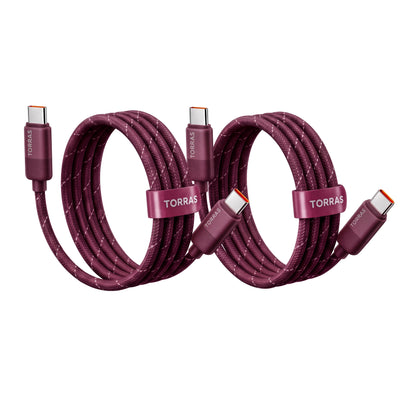
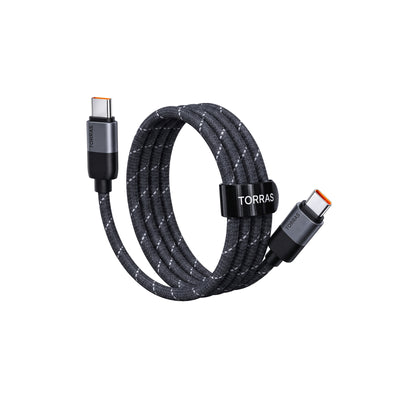
- An external SSD needs a suitable data cable, clearance around its plugs, and support for the drive’s power requirements.
USB-C describes the connector shape. The accessory and cable documentation must also confirm the functions you need.
Separate file access from recording support. A drive appearing in Files means the phone can access it; direct video recording requires a supported phone, app, and recording format. Apple’s Camera app, for example, supports external ProRes recording on supported Pro models. Seeing a drive in Files does not establish that every camera mode can save to it.
For a microphone, confirm that its USB connection carries audio to your phone. Some equipment has a USB port intended for charging or other functions. A receiver’s power light also does not indicate which input your recording app is using.

Will Plug Housing Fit Through the Case Opening?
Compare the plug’s outer housing with the case opening, including the recessed space between the case edge and the phone’s port. The metal connector alone does not show how much room the accessory needs.
Check the opening’s width, height, rounded corners, and depth. Then compare the plug housing’s width and thickness, its wider shoulders, and the point where the cable exits.
Depth matters because a plug may enter the opening but stop when its shoulders meet the case. Rounded corners can also leave less usable space than the opening’s widest measurements suggest. There is no single clearance measurement that establishes fit across all cases and accessories.
For a direct-plug receiver, inspect where its main body sits once connected. It may meet the case edge before the connector reaches the port properly. With an SSD cable, check whether the molded housing or strain relief contacts the case.
Use dimensions and close-up photos for the exact versions you own or plan to buy. If a critical measurement is missing, ask the manufacturer about that combination. A “universal USB-C” label does not confirm iPhone case USB-C port clearance.
Make Sure the Connector Seats Fully
Install the case correctly, with its bottom edge seated around the phone. Insert the accessory straight into the port using the manufacturer’s normal connection method.
Watch for contact between the case and the plug housing or receiver body. If the accessory stops at that contact point, check whether the connector has reached its intended seated position.
Some properly seated plugs leave visible metal or a small gap. Others sit closer to the phone. Use the accessory’s design and instructions as the reference; neither hidden metal nor a fixed gap is a reliable standard for every connector.
If a USB-C plug is blocked by the phone case, stop rather than pushing harder. Sideways pressure, twisting, or holding the accessory in place to maintain a connection are reasons to reassess the fit. Keep the case and connector intact: cutting the opening, filing the plug, or taping an incomplete connection in place will not create a dependable fit.
If the case allows safe removal, a comparison without it can show whether the housing reaches the phone normally. Keep the accessory and connection method unchanged.

Test the Microphone or SSD in the App You Use
After checking physical fit, test the accessory’s actual function. Use the recording app and settings you plan to use, and check microphone input and storage separately.
Confirm the External Microphone Is Recording
Open your recording or camera app and check any available input selector, accessory name, or audio-device status. Follow the app and microphone instructions because input controls vary.
Record a short spoken passage and play it back. Confirming an input name is useful, but playback also checks that usable audio reached the recording.
If the app does not identify the input clearly, follow the microphone manufacturer’s verification procedure. A controlled comparison can provide an additional clue: keep the phone farther away while speaking close to the external microphone, then compare the result with a recording made without it. Treat this as a supporting check, since room acoustics and automatic audio processing can affect the difference.
Listen for missing audio, unexpected level changes, or interruptions. Resolve an uncertain input before moving on to the handling test.
Confirm SSD Access and the Recording Destination
Connect the SSD and check that it appears in the expected storage location. Copy a small test file that you also have saved elsewhere, then open the copy from the drive. This checks basic writing and reading without risking your only copy.
For direct video recording, confirm two things separately: that the phone and app support external recording, and that the drive and cable meet the requirements for your selected format. Those requirements can include drive format, sustained writing performance, cable data capability, and power.
Select the external destination where the app provides that control. Record a short clip at your intended resolution, frame rate, and format. Stop normally, confirm the saved location, and play the clip back.
A successful small-file copy does not prove the setup can sustain video recording. Test the task you intend to perform.

Keep the Connection Steady as You Hold and Turn the Phone
Hold the phone securely over a low surface and make the movements your setup requires. Turn between portrait and horizontal positions, place the phone on its stand, and adjust the framing gently.
With a direct-plug receiver, check whether your palm, the stand, or the case touches its body. A receiver that clears your hand in portrait orientation may sit against it when you turn the phone. Move the phone normally without pulling on the receiver to test its grip.
For cable-connected accessories, leave enough slack for those position changes. Support the SSD separately so its weight does not hang from the phone’s port. Check both ends of the cable for tension.
If the cable pulls tight when you turn the phone, reposition the drive or change the route before continuing. Keep the cable clear of stand hinges and places where your hand closes around the phone.
During a test recording, watch for stopped capture, accessory warnings, audio interruptions, or storage errors. Use realistic movements throughout; shaking the phone or bending the connection adds strain without representing normal use.
If It Disconnects, Change One Thing at a Time
Stop recording or writing and allow the app to finish saving before adjusting the connection. Then match the next check to the symptom.
| Symptom | First Checks |
|---|---|
| Plug stops before seating | Housing shoulders; recessed opening; receiver-body contact |
| Accessory seated but not recognized | Supported connection; cable function; power; app requirements |
| Connection drops during movement | Cable tension; hand contact; stand contact; drive support |
| SSD visible but external recording unavailable | Phone and app support; recording mode; destination selection |
| Recording starts but stops or reports errors | Cable capability; drive performance; power; app requirements |
If the microphone receiver does not fit the iPhone case, address the contact point first. A differently shaped compatible connector or a manufacturer-supported connection method may provide the necessary room.
For a seated accessory that remains unrecognized, verify the cable’s intended function. Successful charging does not establish suitability for the required audio or data connection. Check whether the accessory needs its own power source or a compatible powered hub.
When disconnection occurs only during movement, repeat the specific motion slowly and observe the cable, receiver, and support points. Adjust the source of tension or contact, then repeat the recording test.
If you can safely remove the case, compare the setup with and without the case while keeping the other equipment and settings unchanged. A different result points to clearance or seating as an area to inspect; it does not identify the exact contact point on its own.
If the problem continues, contact support with the phone, accessory, and cable models, app version, recording settings, and steps that reproduce it. Include whether the failure occurs while stationary or during a particular movement.
Run a Short Recording Test Before You Start
Record a sample with your actual microphone, storage destination, camera settings, and phone position. Play back the sound and video, and confirm where the file was saved. Repeat after changing the case, cable, adapter, or mounting arrangement. For longer sessions, test the expected recording duration and power setup as well; a short successful clip only confirms that initial test.
FAQs
Q1. Can You Use an External Microphone and SSD at the Same Time?
Yes, if the phone, app, and connection setup support simultaneous audio input and storage access. Check each hub port’s role and the combined power requirements. Several USB-C sockets can provide different functions, including power-only input.
Q2. Will a Short Extension Cable Help a Microphone Receiver Fit?
It may provide clearance when the microphone manufacturer supports that connection and the extension carries the required signals. Confirm suitability for the exact receiver. An extension adds another connection point, so repeat the input and handling checks afterward.
Q3. Is a Right-Angle USB-C Cable Better for an External SSD?
A right-angle cable can improve routing when its exit direction suits your case and stand. Check the housing dimensions, orientation, and data capability. The angled housing still needs room to seat fully at both the phone and SSD.
Q4. Can You Charge Your iPhone While Using These Accessories?
Yes, through a setup that supports charging alongside the required audio or data connection. Confirm pass-through charging and the power source requirements. An extra socket on a receiver or hub may have another purpose, so check its specified function.
Q5. Will a Magnetic SSD Mount Affect the Cable Connection?
Its position changes the cable route and required slack. Check camera, stand, and port clearance with the drive mounted. Magnetic attachment, wired data transfer, and wireless charging are separate capabilities; support for one does not establish the others.

 New